Delete Blank Rows in Excel with a Simple Macro (Step-by-Step Guide)
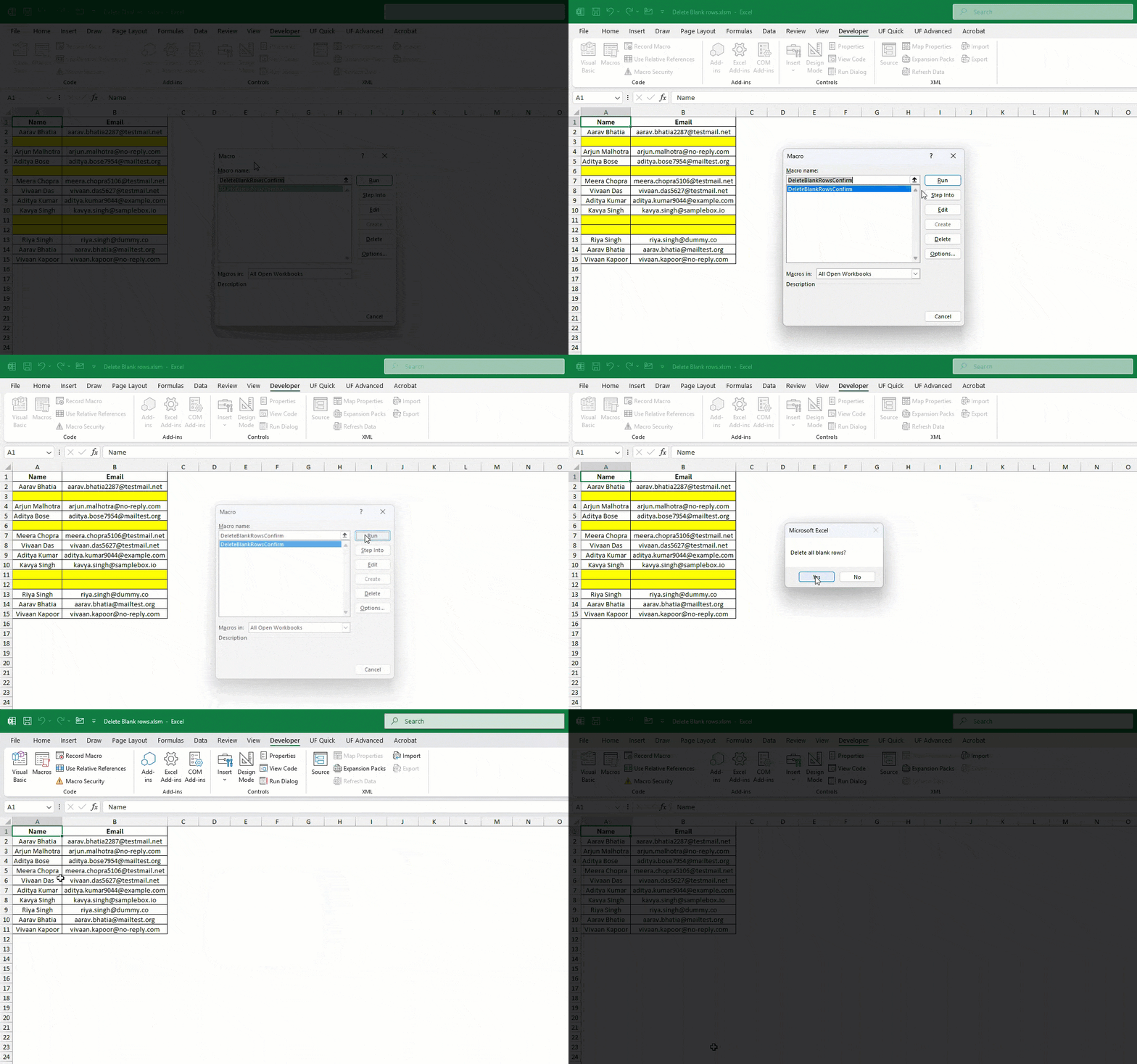
Messy Excel files with random blank rows are frustrating. I’ve faced them too while working with reports from clients or raw exports from tools. Manua...
We’ve all dealt with messy Excel sheets where the same value appears more than once. Whether it’s duplicate names, IDs, or product codes, spotting them manually is painful. I’ve been stuck in that situation too. That’s where a simple macro to highlight duplicates can save hours. In this post, I’ll share the basic version, smarter improvements, and easy adjustments you can use right away.
Use this macro when:
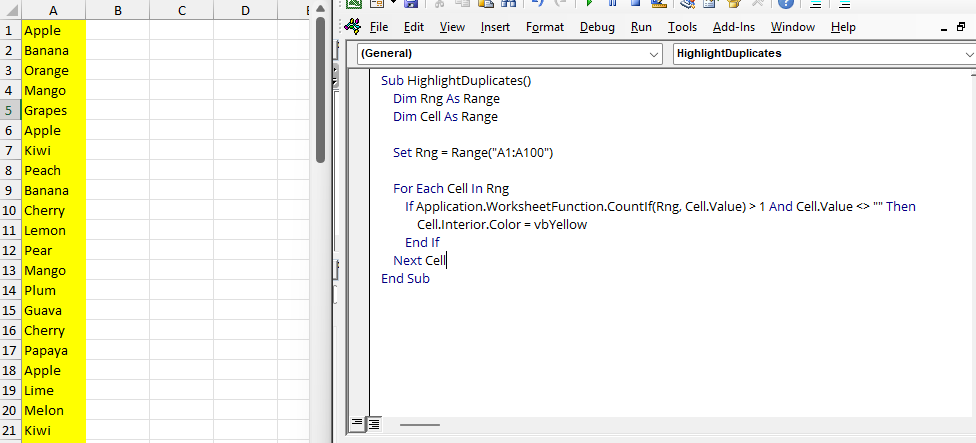
Here’s the simplest version to highlight duplicates in column A:
Sub HighlightDuplicates()
Dim Rng As Range
Dim Cell As Range
Set Rng = Range("A1:A100")
For Each Cell In Rng
If Application.WorksheetFunction.CountIf(Rng, Cell.Value) > 1 And Cell.Value <> "" Then
Cell.Interior.Color = vbYellow
End If
Next Cell
End Sub
How It Works
In short: Excel scans your range → finds repeated values → colors them.
Instead of hardcoding A1:A100, let’s make it flexible:
Sub HighlightDuplicatesInSelection()
Dim Rng As Range
Dim Cell As Range
Set Rng = Selection
For Each Cell In Rng
If Application.WorksheetFunction.CountIf(Rng, Cell.Value) > 1 And Cell.Value <> "" Then
Cell.Interior.Color = vbYellow
End If
Next Cell
End Sub
Just select the cells you want before running the macro.
Yellow is fine, but what if you want red or green?
Sub HighlightDuplicatesRed()
Dim Rng As Range
Dim Cell As Range
Set Rng = Selection
For Each Cell In Rng
If Application.WorksheetFunction.CountIf(Rng, Cell.Value) > 1 And Cell.Value <> "" Then
Cell.Interior.Color = RGB(255, 100, 100) ' Light Red
End If
Next Cell
End Sub
Change the RGB values for any custom color.
Sometimes you want to keep the first occurrence normal and only highlight the later duplicates:
Sub HighlightSecondDuplicates()
Dim Rng As Range
Dim Cell As Range
Set Rng = Selection
For Each Cell In Rng
If Application.WorksheetFunction.CountIf(Range(Rng.Cells(1), Cell), Cell.Value) > 1 And Cell.Value <> "" Then
Cell.Interior.Color = vbYellow
End If
Next Cell
End Sub
This way, the first entry stays untouched, and only the repeats light up.
Here are some easy adjustments you can make:
Cell.Font.Bold = True
And that’s it! With just a few lines of VBA, you can make duplicates stand out instantly.
We started with a simple macro, then made it smarter by letting you select ranges, change colors, and highlight only repeat entries. Finally, we saw small adjustments to customize it further.
Try this on your data, and you’ll never struggle with spotting duplicates again.
No comments yet. Be the first to comment!
Free offline Android app to learn Excel formulas, functions & shortcuts anytime, anywhere!
Download Free AppUse Ctrl+T to convert your data range into a formatted table instantly.